Strangers in Your Travel Photos? Paint Them Out: AI Erase, Tested
9/23/2026
You finally made it to the place you wanted to see, and the photo is full of other people: tourists walking through the frame, heads blocking the foreground, a row of tiny figures along the beach. AI Erase is built for exactly this. Pick the people you don't want, check the red area, spend 5 credits, and AI puts back the scenery behind them. Every photo below is real, and the results have not been retouched by hand.
Example 1: give the beach back to the view
A cliff by the sea. Great shot, except for a backpacker walking right through the middle and a dozen people playing in the surf in the distance.

Three steps:
- Upload the photo and click Remove objects above the canvas.
- With Pick, click the backpacker and the people in the distance. Each one turns red as you pick it. If a small figure was missed, add it with Paint.
- Check the red area, then click Erase · 5 credits.

The red preview is the most important step. Everything under the red is what this erase removes, and not a single pixel outside it changes. We checked the result: compared pixel by pixel with the original, the largest difference outside the red area is 0.
The AI took 25 seconds. The wet sand, the line of the waves and the texture of the rocks all continue, with no sign anyone stood there.
Example 2: the people blocking the Leaning Tower
The usual story at a famous landmark: you want the tower, the foreground is full of people. In this shot three people stand close to the camera in the bottom-left corner, taking up nearly a quarter of the frame.

We picked only those three. The crowd further back is part of the place and doesn't need to go. You decide what gets erased; the AI never widens the area on its own.
Don't forget the shadow
On our first try we picked only the people, and the shadow of the man in red stayed on the ground as an odd dark streak (left, below). The shadow was outside the red area, and the AI never touches anything outside it.

The fix: switch to Paint, brush over the shadow to add it to the red area, and erase again (you can see the brush stroke in the preview below):


The paving, the railing and the lawn are filled in, and the crowd and the tower are exactly as they were. The AI took 31 seconds.
Measured against the common approach
Plenty of AI tools can "remove people from a photo" now. The usual way is to hand the whole photo to an image model with a line like "remove the people", and the model draws you a new one. To keep it fair we used the same model SegmentLens erases with, and sent it the same two photos whole:

The people are gone, but the difference map in the middle tells the story: the cliff's outline moved, and the waves and sand were redrawn too. That isn't an edit; it's a new picture drawn after the original.
| Whole photo redrawn by AI | SegmentLens AI Erase | |
|---|---|---|
| Beach photo, output size | 864 × 1184 (original 1600 × 2131) | 1600 × 2131, same as the original |
| Tower photo, output size | 1248 × 832 (original 1600 × 1067) | 1600 × 1067, same as the original |
| Pixels clearly changed outside the people (brightness difference over 6%) | Beach 17%, tower 13% | 0% |
| Who gets erased | Described in a sentence; the AI decides | You pick, and pay only after checking the red preview |
The resolution loss shows when you zoom in. The same spot on the tower: original on the left, whole-photo redraw in the middle, SegmentLens on the right:

Image models answer with a picture of about one megapixel, so redrawing the whole photo always lowers its resolution. Give one a 4000-pixel-wide phone photo and the long side comes back around 1200 pixels.
How SegmentLens does it
- Precise selection with SAM 3. One click gives the whole person's outline, hair and clothing edges included, grown by a few pixels by default. No painting stroke by stroke, no missed edges.
- Only a piece goes to the model. We cut out a crop around the red area, send just that to the AI, and put its answer back inside the red area. Your photo keeps its full size.
- Nothing outside the red changes. Only pixels inside the red area are taken from the AI; everywhere else is the original. That's where the 0% in the table comes from.
- What is left, you erase again. Inside the red area is exactly what the AI drew, with no retouching of ours. If something remains, such as a shadow the red area left out, paint it and erase once more.
The timeline: every step is kept
This is one design of ours you won't find elsewhere: an AI edit never overwrites your image. Each one adds a version to the image's timeline.
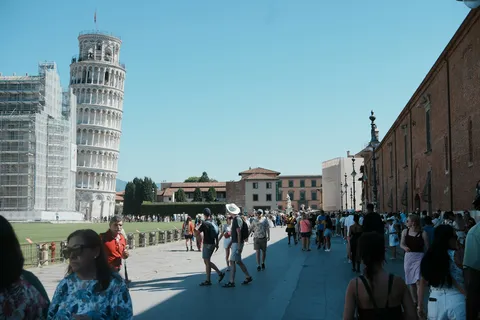
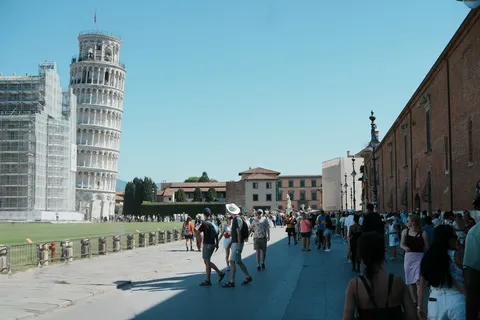
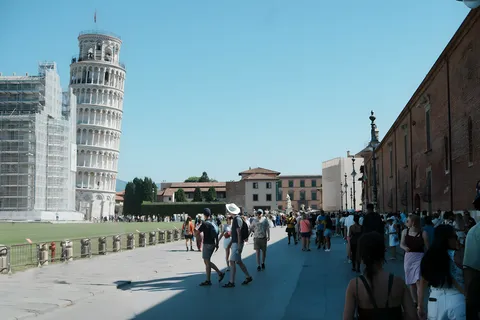
These are the tower photo's three real versions: the people erased, then the erased version upscaled. Zoom into step ③ and the tower's arches and railings are far sharper than in step ②:

What the timeline gives you:
- The original is always there. Erased too much, or not happy? Click any version on the timeline to go back. No re-uploading.
- Hold to compare. Press and hold Hold to compare and the canvas shows the previous version until you let go. What changed is obvious at a glance.
- Carry on from any step. Erase again on an earlier version and the new result goes to the end of the timeline; nothing earlier is lost.
- Erase, upscale and cutouts share one timeline. On any version you can keep picking objects, cutting out and downloading. Object outlines follow the version (after an upscale doubles the size, the outlines double too).
- Back after a refresh, or on another device. Versions are saved to your account, so what you paid for is never lost.
Three tools to control the area
In Remove objects mode there are three tools above the canvas:
| Tool | What it does |
|---|---|
| Pick | Click a person or object to select all of it. Pick as many as you like |
| Paint | Add what was missed: shadows, edges, small things that weren't detected |
| Wipe | Remove parts of the red area you want to keep |
There is also an edge margin slider. By default picked objects grow by a few pixels so hair and clothing edges come out clean, and the margin shows in the red preview as well.
Failures are refunded automatically: if the AI service errors, times out or its safety system refuses the image, the credits come back.
Tips for better results
- Erase the people who are close and large. A distant crowd usually belongs to the scene, and removing all of it tends to look fake.
- Shadows, bags people are holding, dogs on a leash: pick or paint them too.
- Regular backgrounds work best: sand, grass, paving, walls. The busier the background, the more you should check what was filled in.
- If something is left over, paint it and erase again on the new version. That usually beats drawing a huge area up front.
Cost
Each erase is 5 credits, however many people you pick. New accounts get 5 free credits, enough for one try.
Photos from Unsplash (Unsplash License): beach by Lisa van Vliet, Pisa by Ali AOUF. Erase and upscale results produced by SegmentLens with no manual retouching. The "whole photo redrawn by AI" comparison used the same image model SegmentLens erases with, prompted "Remove the people from this photo; keep everything else the same."